Master Your CE Tracker for Complete Compliance

Understand how to read your CE Tracker—from credit allocation and requirement breakdowns to warnings and progress—so you can stay fully confident in your compliance.”

Screenshot 2026-04-15 at 4.55.28 PM

From Top to Bottom—Understanding Your CE Tracker

Explore each section of your CE Tracker to see how your requirements are structured, how your credits are applied, and how to confidently manage your progress toward compliance.

Screenshot 2026-04-15 at 5.04.00 PM

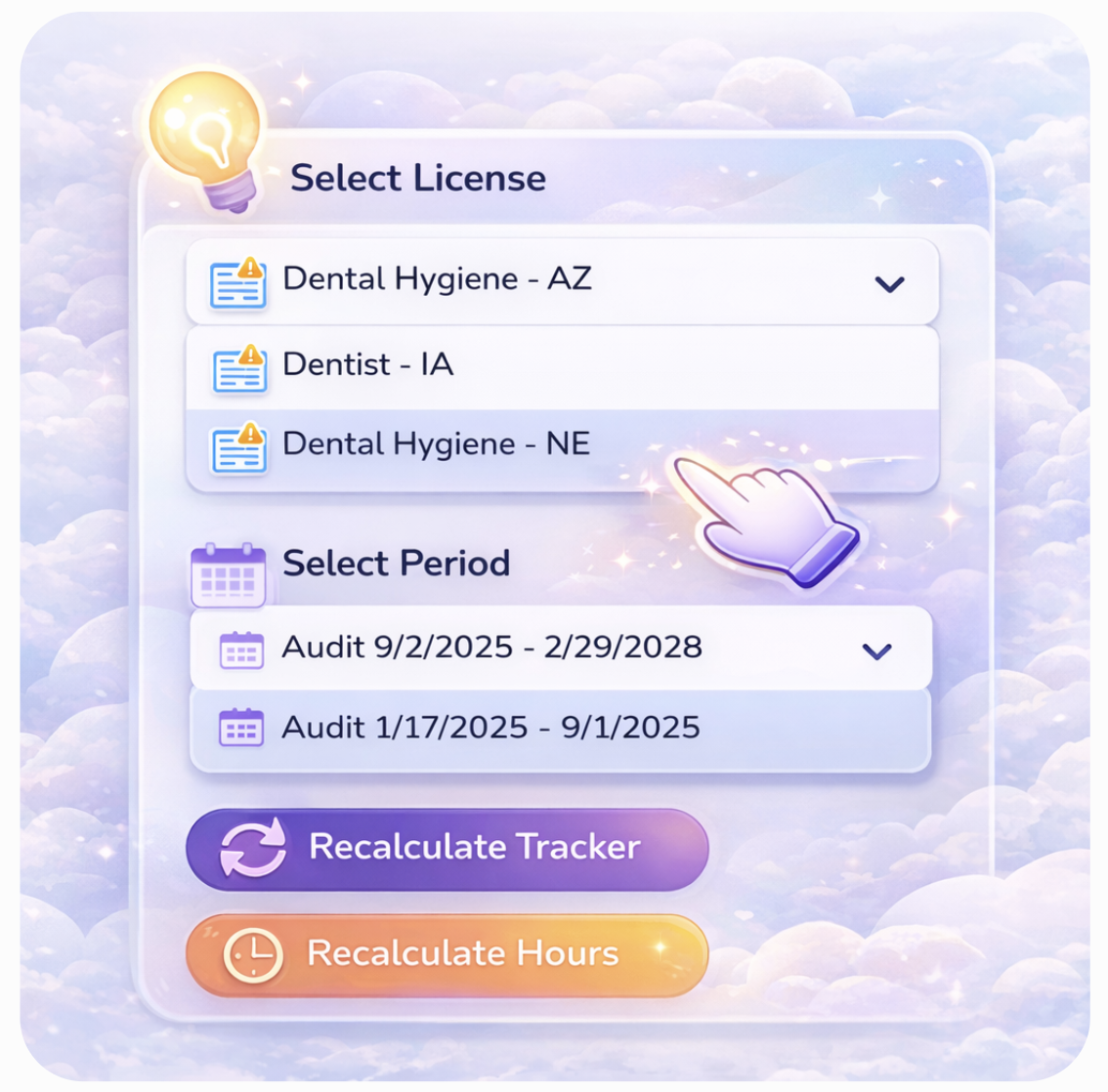
Licenses & Periods

At the top of your tracker, use the dropdown menus to:

  • Select your license or CE tracker (e.g., Dental Hygiene - NE)
  • Choose your renewal or audit period

⚠️ Be sure you are viewing the correct renewal period to see the most up-to-date status for your current cycle.

Screenshot 2026-04-15 at 5.04.00 PM

Recalcuate Buttons

If you notice that some records aren’t being allocated or your total hours seem off, use the Recalculate Hours and Recalculate Tracker buttons.
These features re-run all of your tracker data, allowing the system to detect and include any new, migrated, or previously unrecognized records. Running this recalculation ensures your tracker displays the most accurate and up-to-date totals for all earned credits and hours.

Recalculate Hours first, then the tracker!

Screenshot 2026-04-15 at 5.19.54 PM

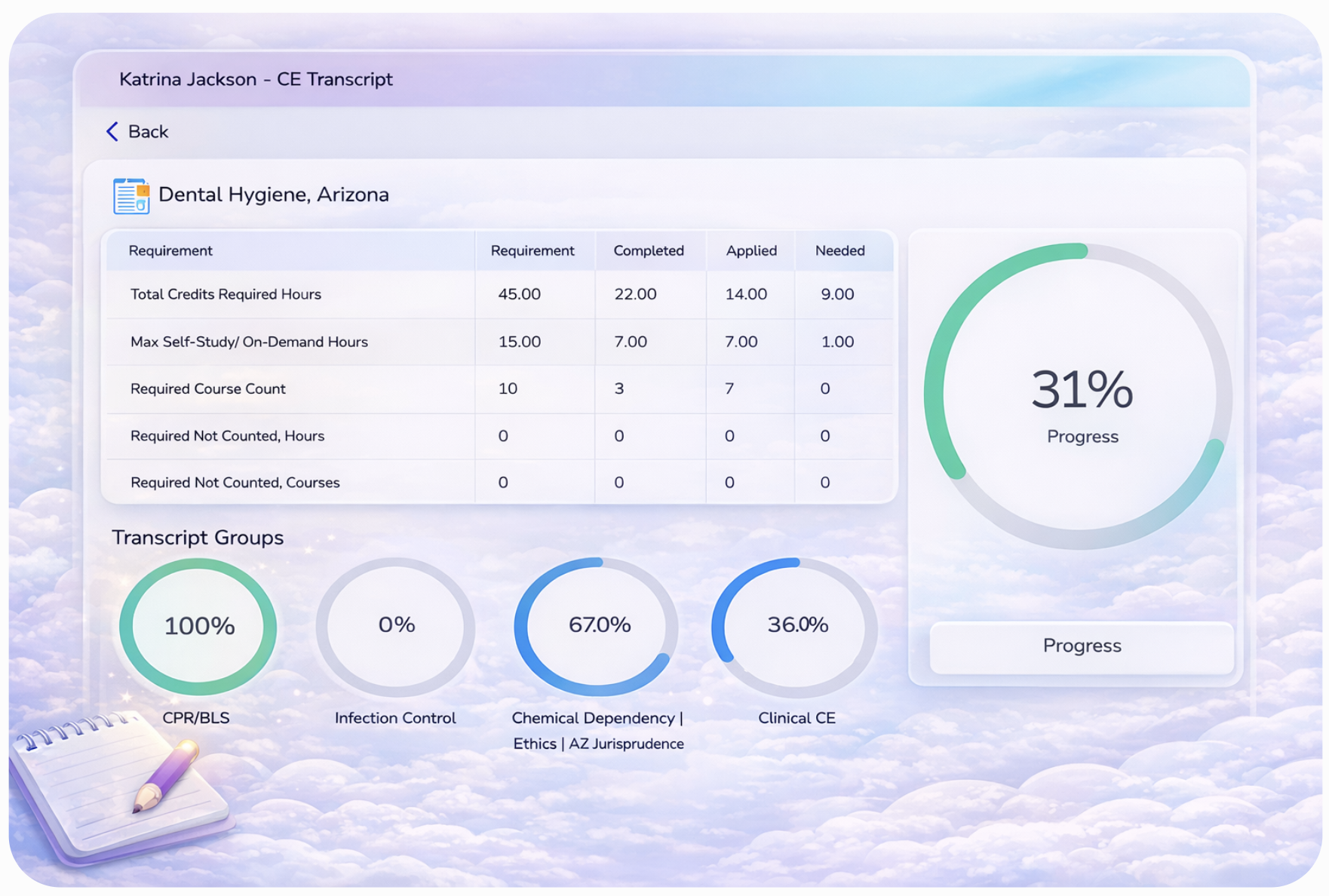
Overall Overview Status

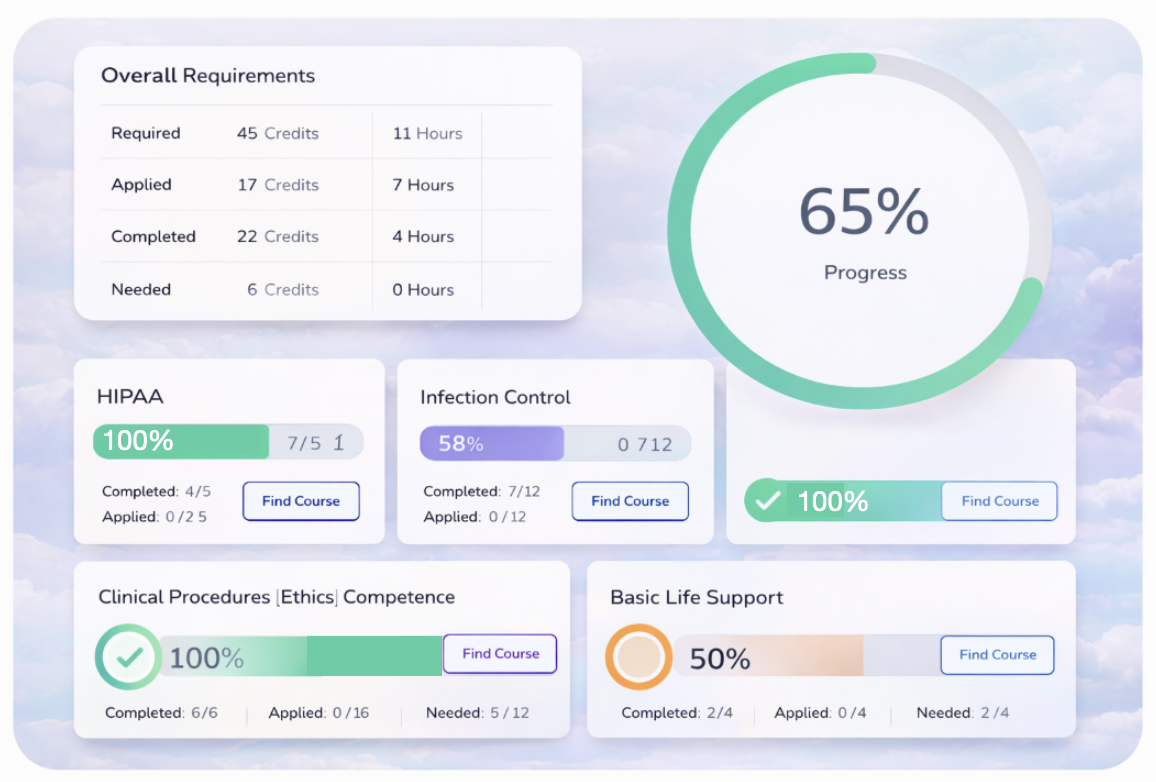
The Overview section at the top of your CE Tracker gives you a high-level snapshot of your progress toward CE completion.

Within the Overview, you will see the following sections:

  • Completed, Applied,  Needed
  • Max Home Study
  • Required Course Count
  • Courses Required, Hours Not Counted
  • Total Completion Progress
Screenshot 2026-04-15 at 5.34.54 PM

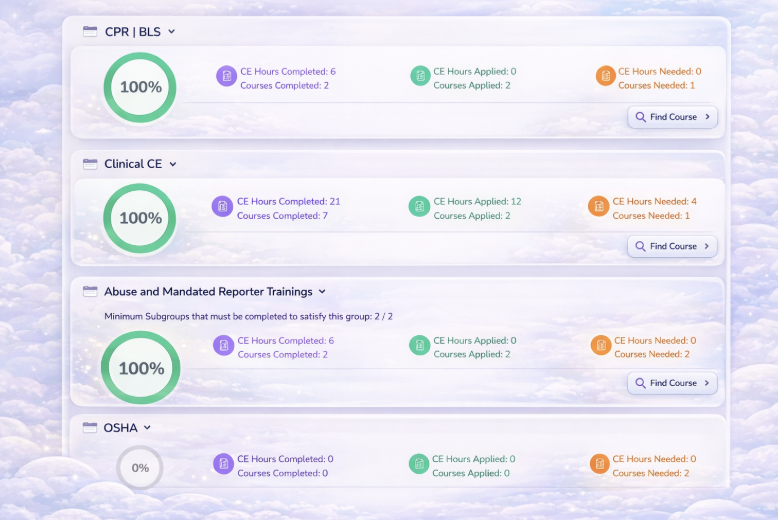
Transcripte Sections

Each section:

  • Is titled with the name of the individual requirement (e.g., CPR | BLS, Clinical CE)

  • Includes detailed criteria for satisfying that requirement

  • Displays the CE courses completed and applied to that section

  • Shows total CE credit hours completed and applied toward fulfilling the requirement
Screenshot 2026-04-15 at 5.50.12 PM

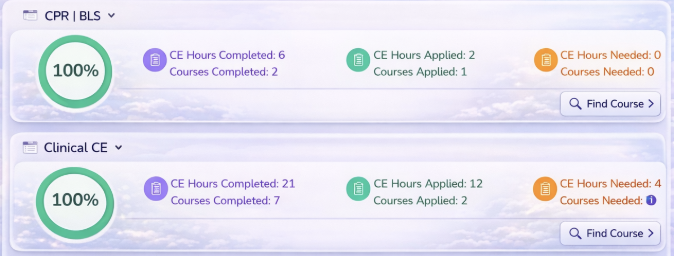
Section Progress Summary

Each CE requirement group—like CPR | BLS—features a Section Progress Summary to help you track your progress at a glance. Here's what each group will display

  • Progress Circle (Green)
     

  • CE Hours & Courses Completed (Purple)

  • CE Hours & Courses Applied (Teal)

  • CE Hours & Courses Needed (Orange)

  • Info Icon (Blue)


Screenshot 2026-04-15 at 6.03.50 PM

Toggle Switch Groups

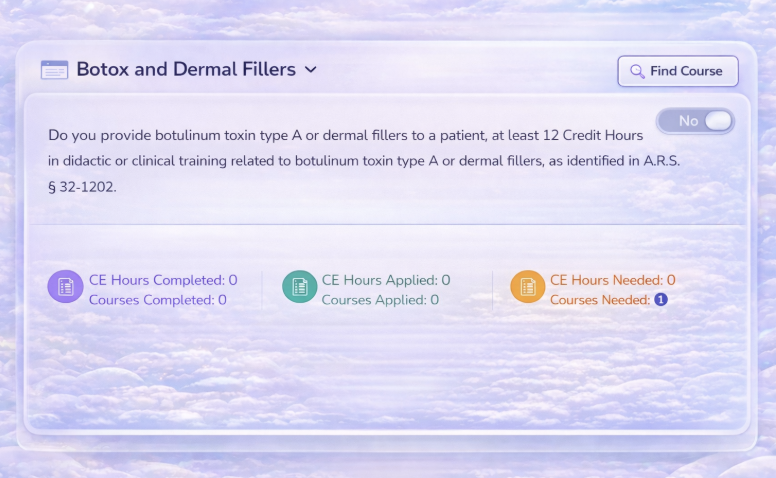
Some transcript sections include a toggle switch that determines whether that group is required for your CE renewal.

By default, the toggle is set to OFF (No):

This toggle is typically used for conditional requirements based on your role, certifications, or the services you provide. Be sure to set the toggle accurately to reflect your professional responsibilities and ensure your tracker reflects the correct requirements.

ChatGPT Image Apr 27, 2026, 09_04_06 AM

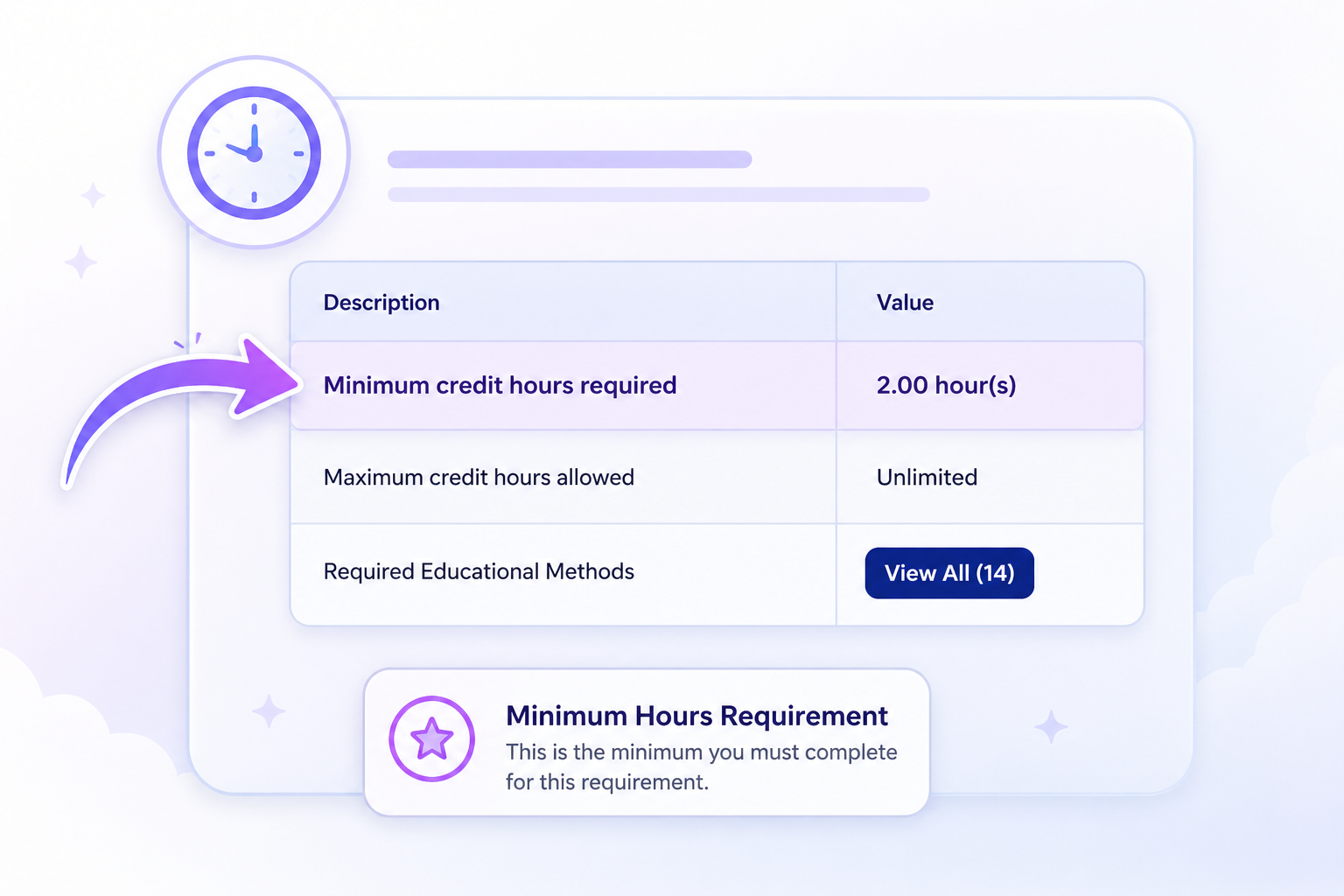
Minimum Credit Hours Required

Some transcript sections will show a “Minimum credit hours required” line in the description table. This indicates the exact number of hours you must complete and apply in that section for it to be considered fully satisfied.

ChatGPT Image Apr 27, 2026, 09_10_56 AM

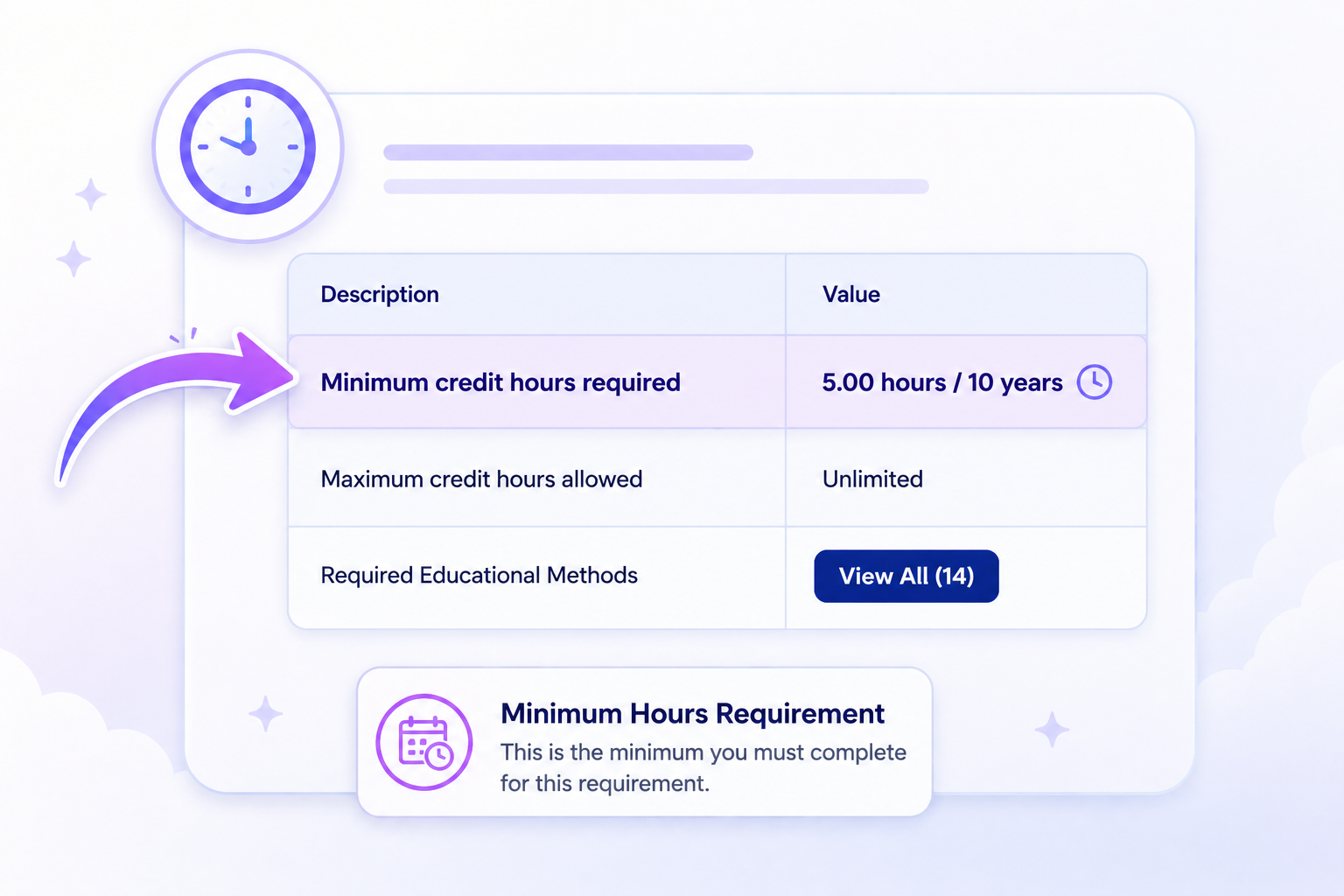
Minimum Credit Hours Required with a Time Frame

Some transcript sections will include a “Minimum credit hours required” line in the Description table, along with a minimum time period in which those hours must be earned, displayed in the Value column.

Certain requirements must not only be met by completing a set number of CE hours but also within a specific time frame, which may differ from your license renewal cycle.

These time-bound requirements generally fall into two types:

1. Time-Limited Validity (Minimum with Expiration)

2. Continuous Validity (No Gap in Active CE)

ChatGPT Image Apr 27, 2026, 09_17_54 AM

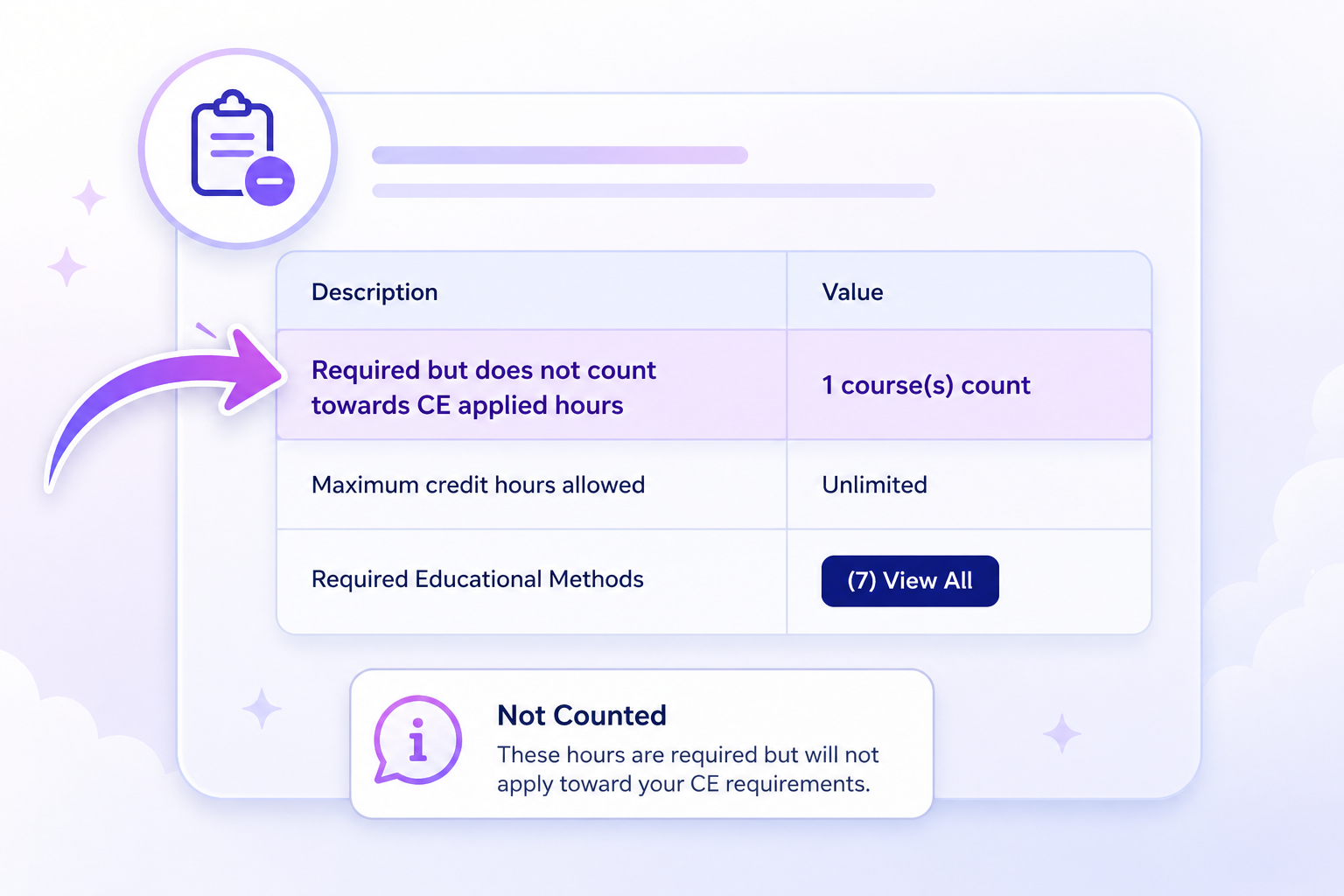
Required but Does Not Count Toward CE Total

If a section is marked as “Required but Does Not Count,” it will replace the "Minimum Credit Hours Required" line in the Description table.

These sections may still include a minimum hour or course count that must be fulfilled to remain compliant. However, the CE hours earned in this section will not be applied toward your overall required CE credit total for renewal.

ChatGPT Image Apr 27, 2026, 09_21_03 AM

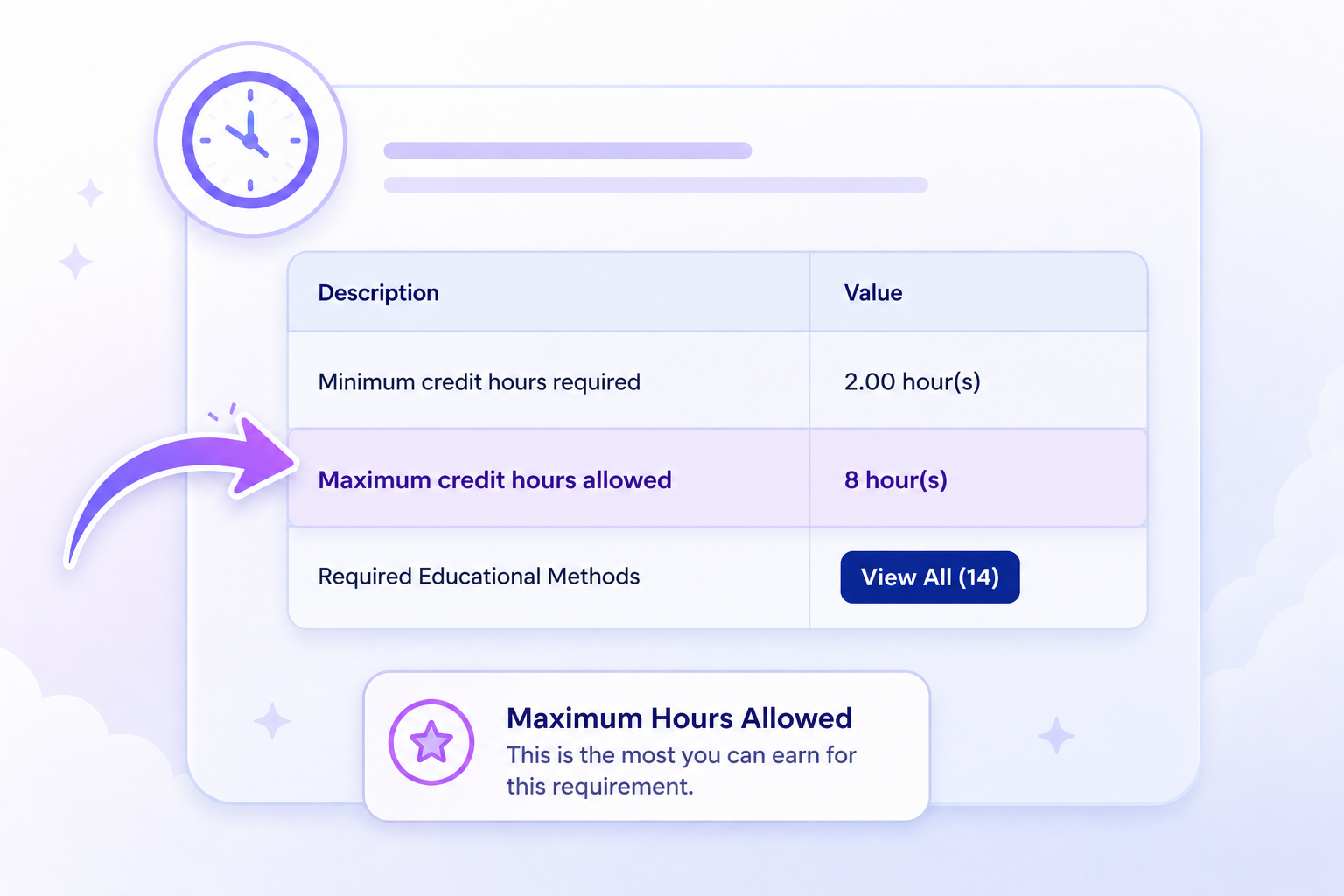
Maximum Credit Hours Allowed

Some transcript sections will include a “Maximum Credit Hours” line in the Description table.

These sections limit the number of CE hours that can be applied, even if you complete more hours in that category.

  • Once the maximum is reached, any additional hours will still be displayed as completed but will not count toward your total required CE hours.
  • This ensures that you do not rely too heavily on a single CE type or topic, especially when your regulatory agency requires a variety of learning formats or subject areas.
ChatGPT Image Apr 27, 2026, 09_26_17 AM

No Minimum or Maximum Credit Hours Identified

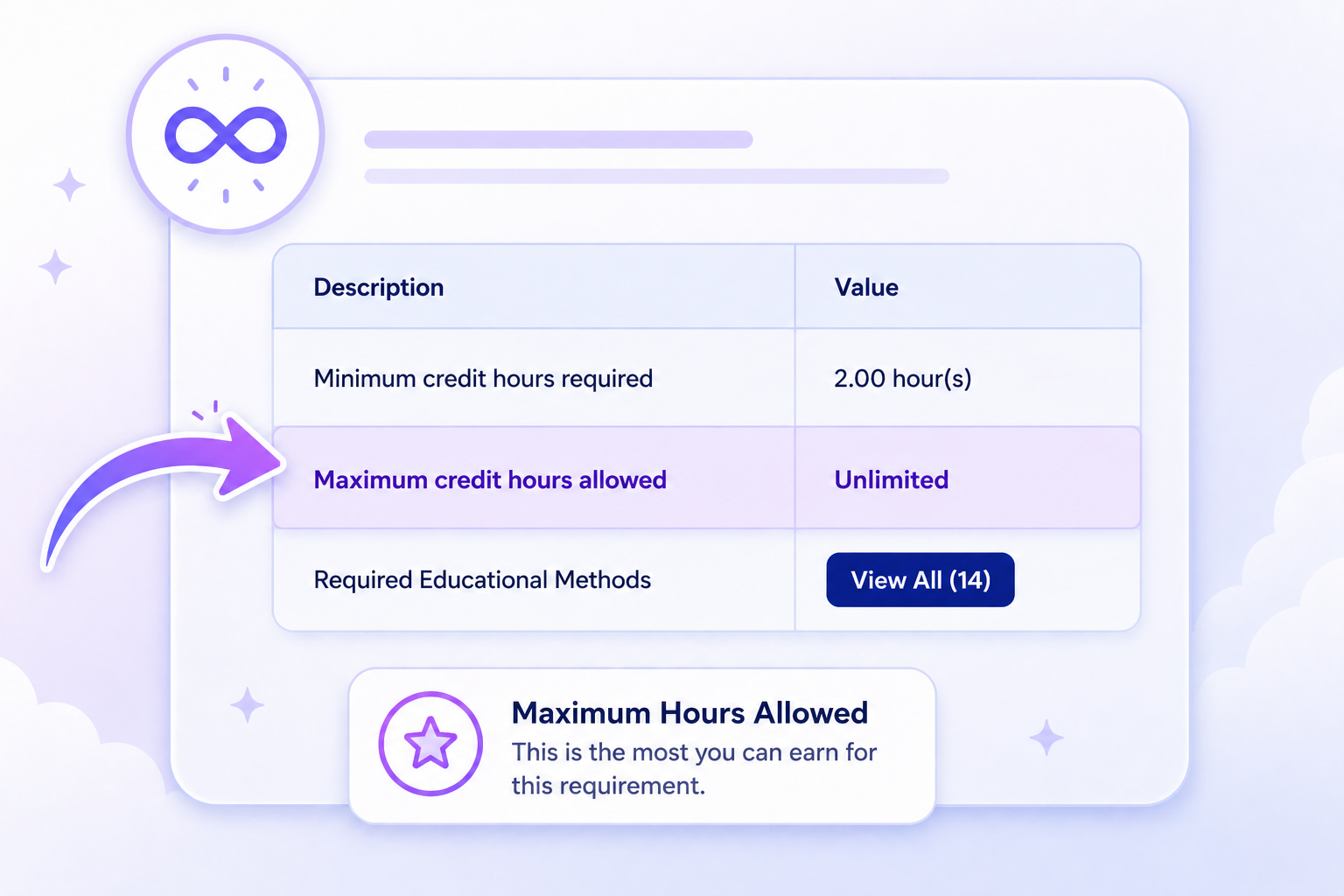
Some transcript sections may be labeled as “0 (Elective)” or “Unlimited”, indicating that there is no specific minimum or maximum number of CE hours required for that section.

Unlimited:  This label means you can apply as many CE hours as you complete in that section, giving you flexibility to meet overall CE requirements.

0 (Elective): Not all elective sections function the same. If a section is marked “0 (Elective)” and allows unlimited hours, it often becomes the primary area where most of your CE hours are applied, especially after other minimum requirements are met.

⚠️ Don't let the term “elective” be misleading—in some cases, this section is essential to fulfilling your total CE requirement.

ChatGPT Image Apr 27, 2026, 09_29_16 AM

Required Educational Methods

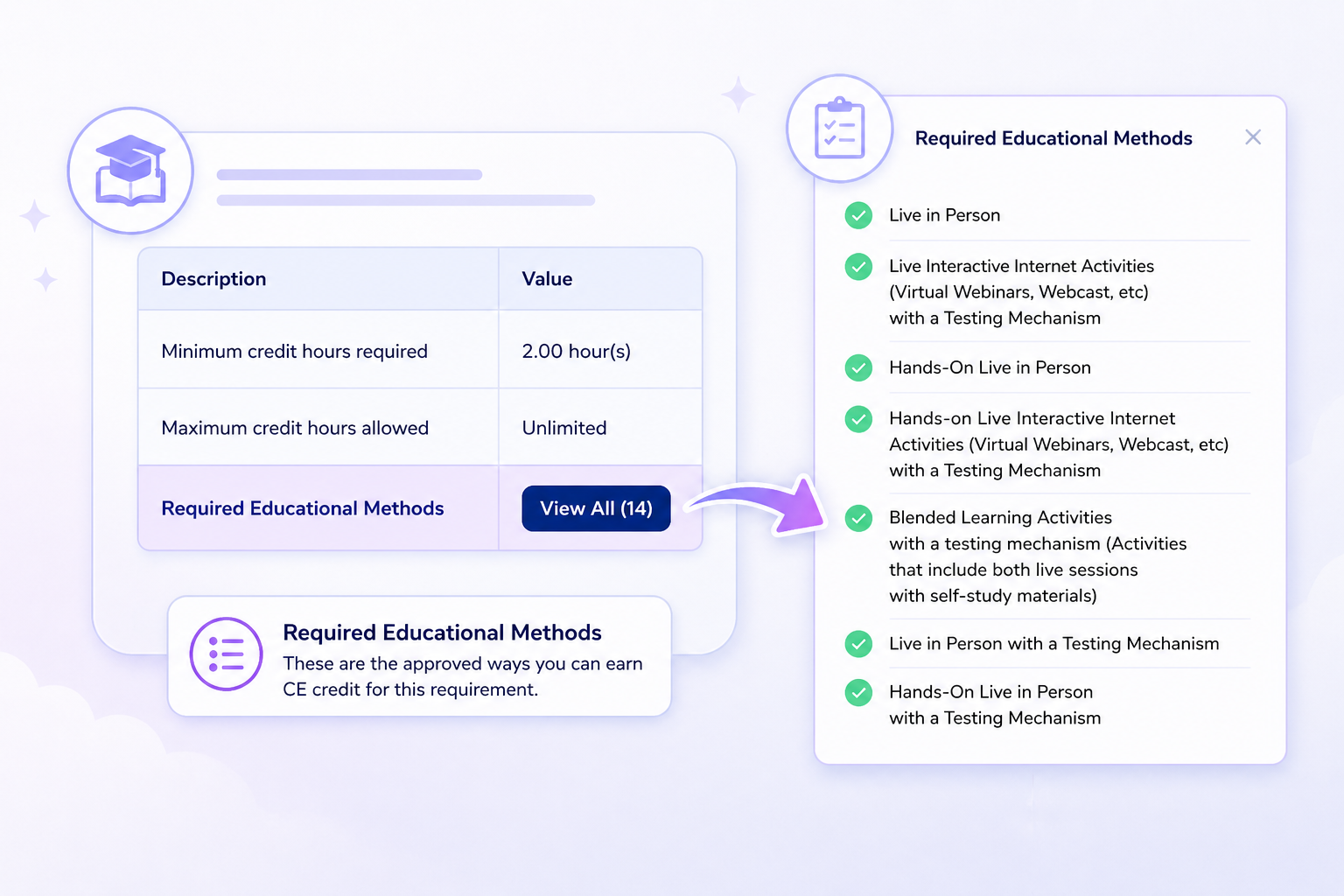
Each section lists all the educational methods that can be used to earn CE credit for the course topics listed in this section. To view the full list of accepted methods, click the "View All" button.

After you click "View All," a pop-up will display the full list of educational methods accepted for the selected section


ChatGPT Image Apr 27, 2026, 09_32_28 AM

Course Topics

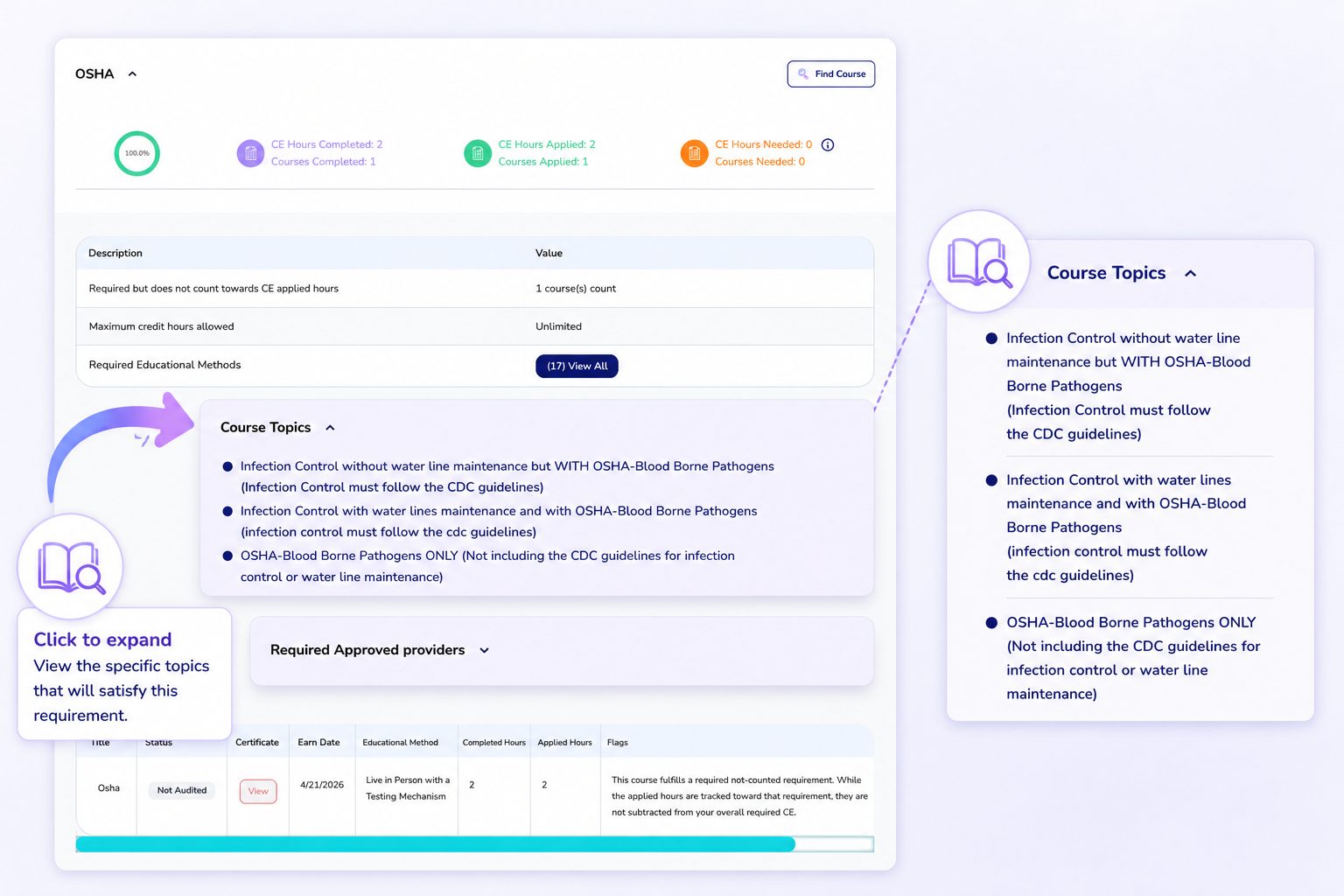
Each transcript section includes a list of course topics that count toward fulfilling the requirements for that section.

To view topics for each section, click the down arrow next to the Course Topics heading. This will display a list of all topics that count toward fulfilling the CE requirements for that section.

ChatGPT Image Apr 27, 2026, 09_34_59 AM

Provider Types

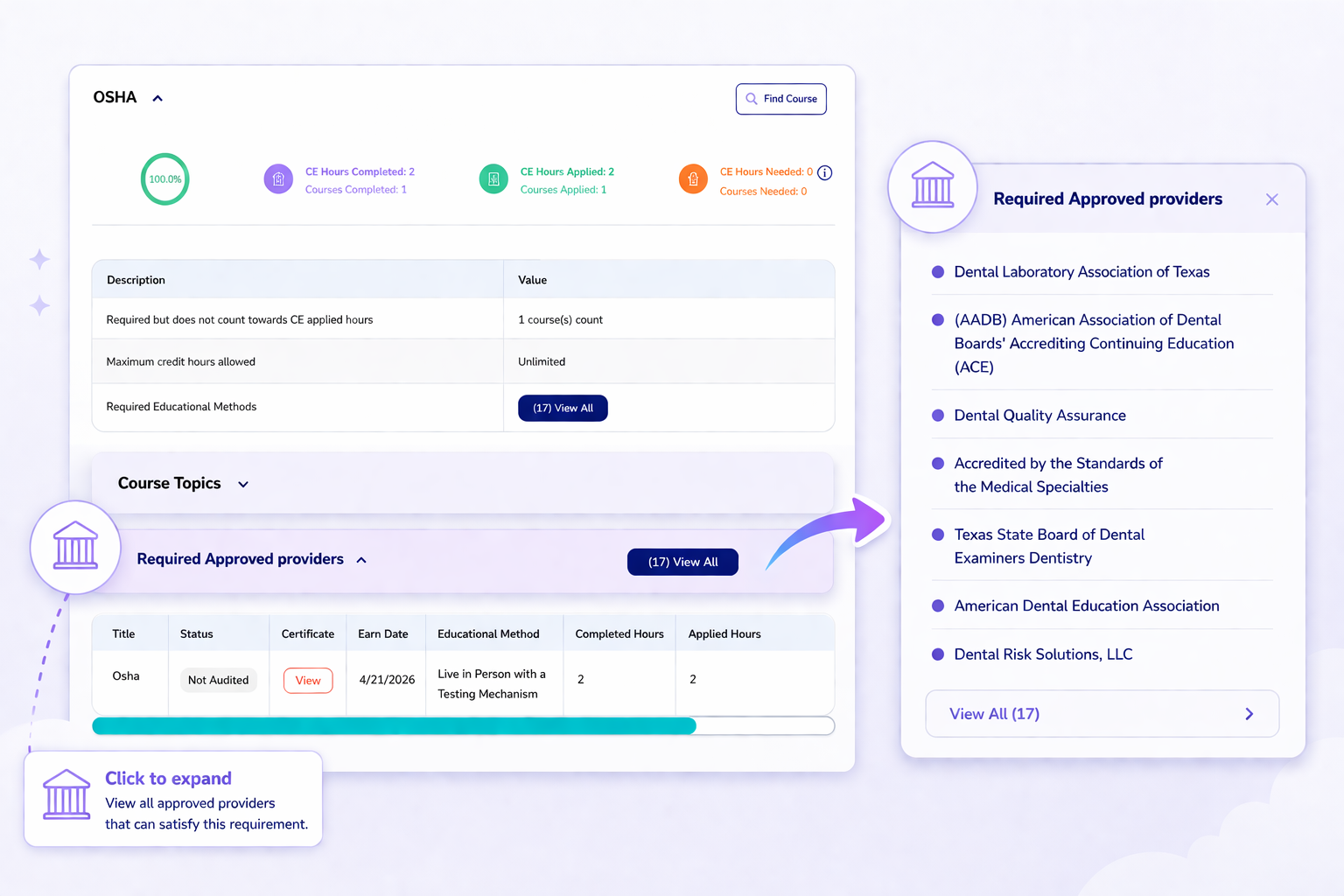
Required Approved Providers
Only courses taken through these listed providers will count toward your CE. If applicable, a “Required Approved Providers” section will appear in your CE tracker.

Suggested Providers
These providers are recommended but not required. Courses taken through other providers may still count, but these are recognized by your regulatory body as preferred sources.

None Listed
If no provider list is shown, you're free to take the course from any educator of your choice.

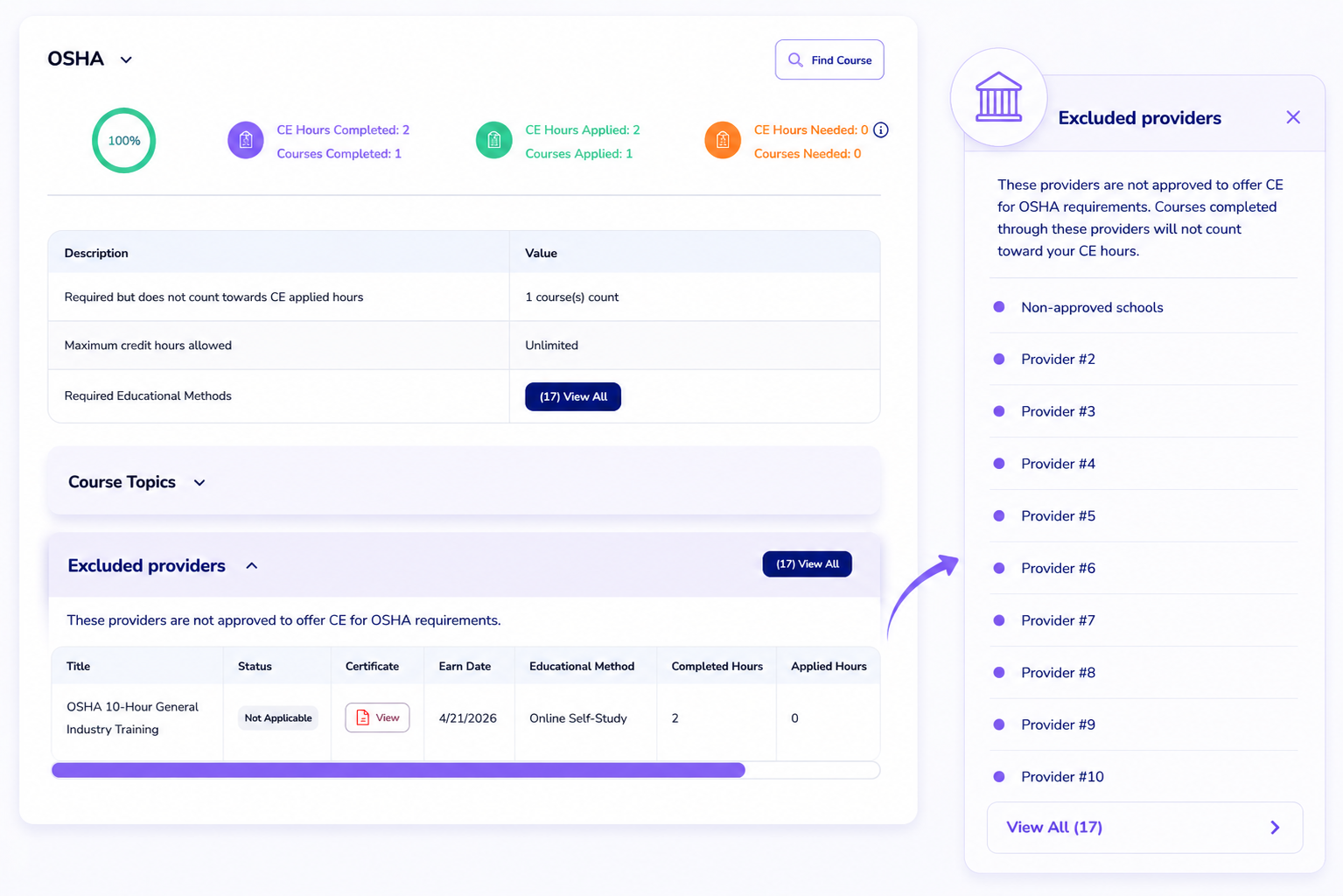
Excluded Providers

Excluded Providers

Courses from excluded providers will not count toward your CE requirements. While the education may still be valuable, any hours completed through these providers will not be applied to your required CE totals.

ChatGPT Image Apr 27, 2026, 09_39_24 AM

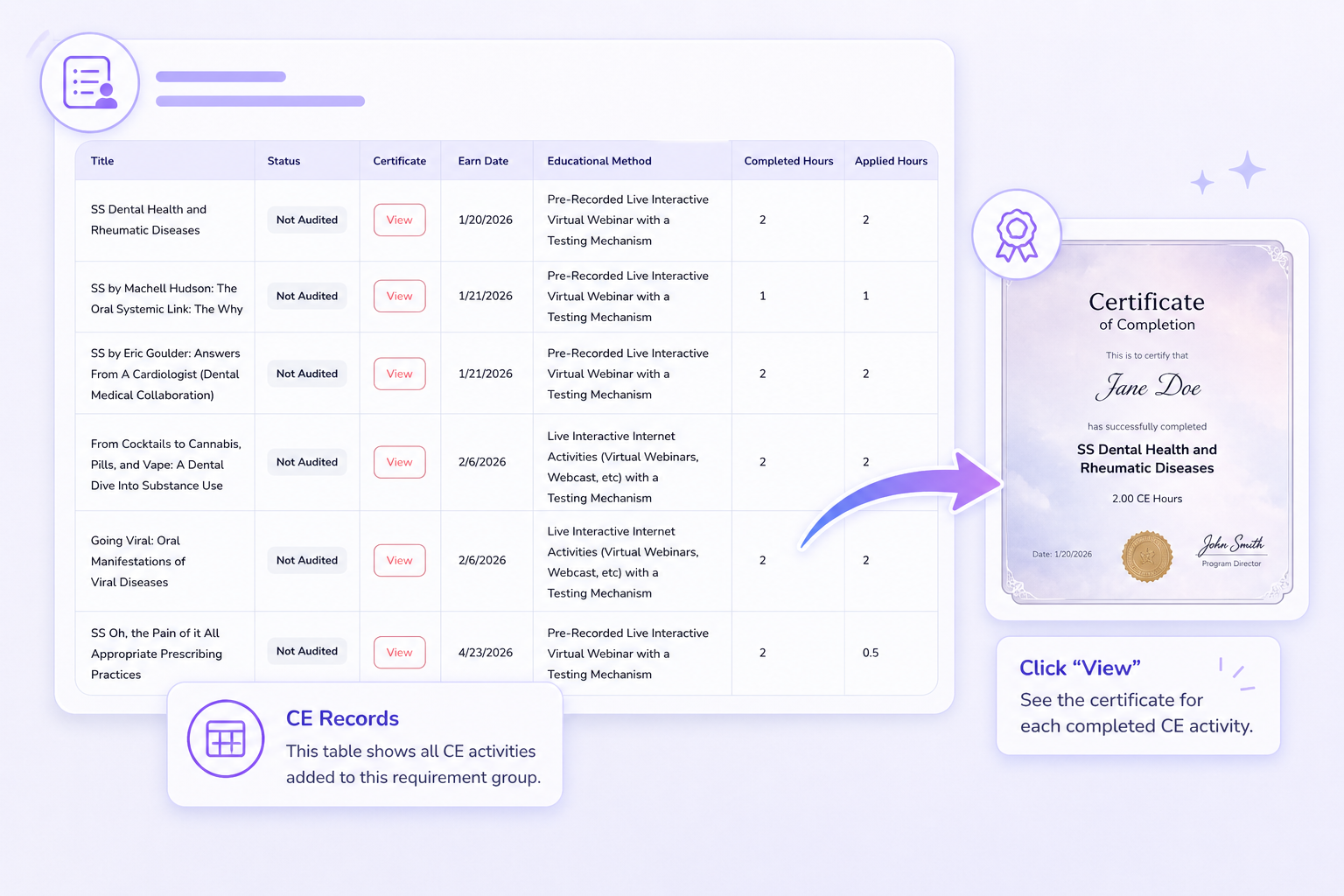
The Records Table

The Records Table provides a detailed view of all CE activities applied within each topic and group—giving you full visibility into how your credits are tracked and counted toward your renewal requirements.

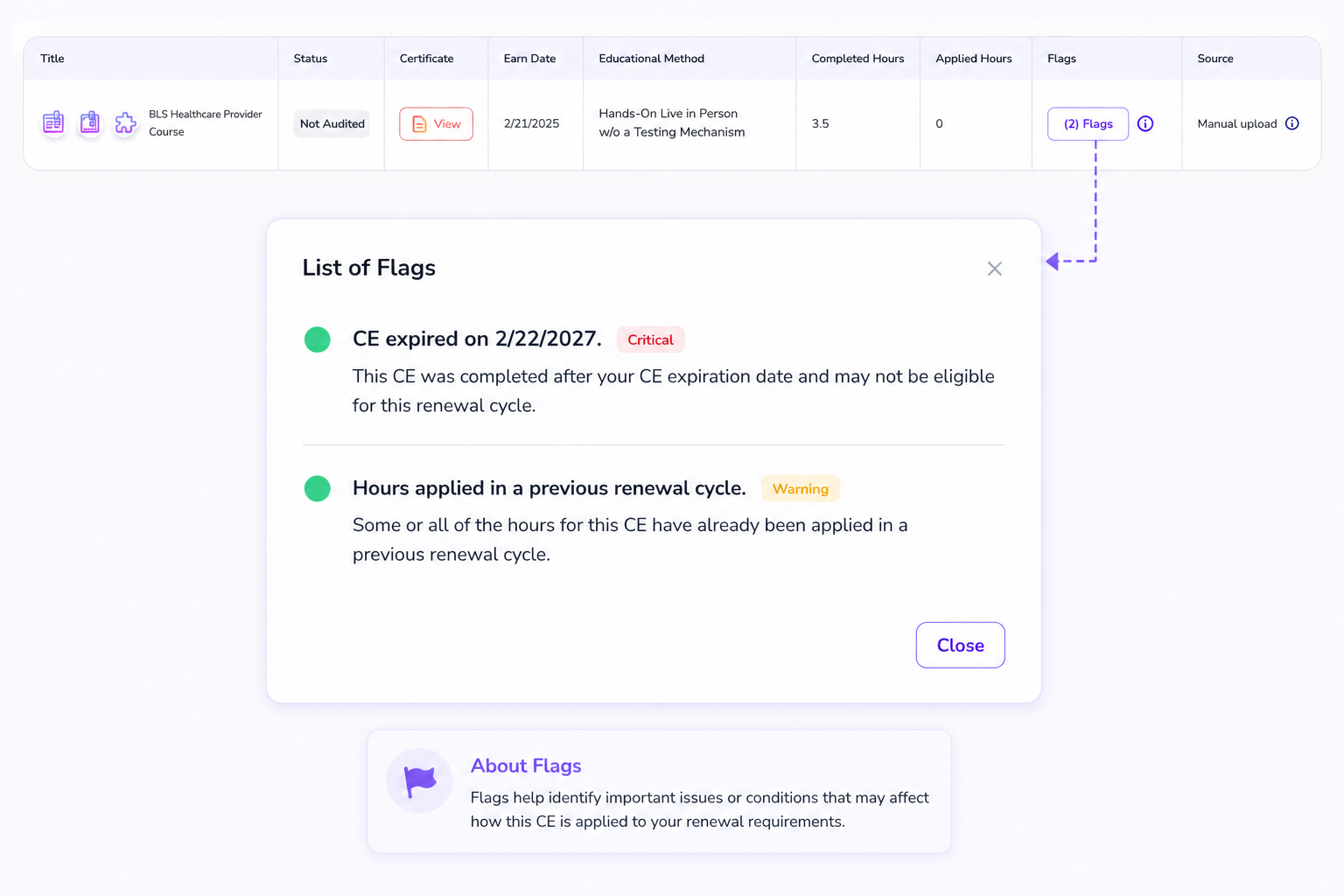
Each entry includes key information such as the course title, audit status (reflecting review by your regulatory board), and access to your certificate. You’ll also see the earn date, educational method, completed hours, and the number of hours applied toward your requirements.

Flags offer additional insight into how your CE is being allocated—highlighting any limitations, exclusions, or special rules that impact how hours are counted. The source identifies how the CE was obtained, whether through CE Zoom or manual upload.

Together, this table gives you a clear, organized record of your CE activity—so you always understand what you’ve earned, what counts, and why.

ChatGPT Image Apr 27, 2026, 10_03_30 AM

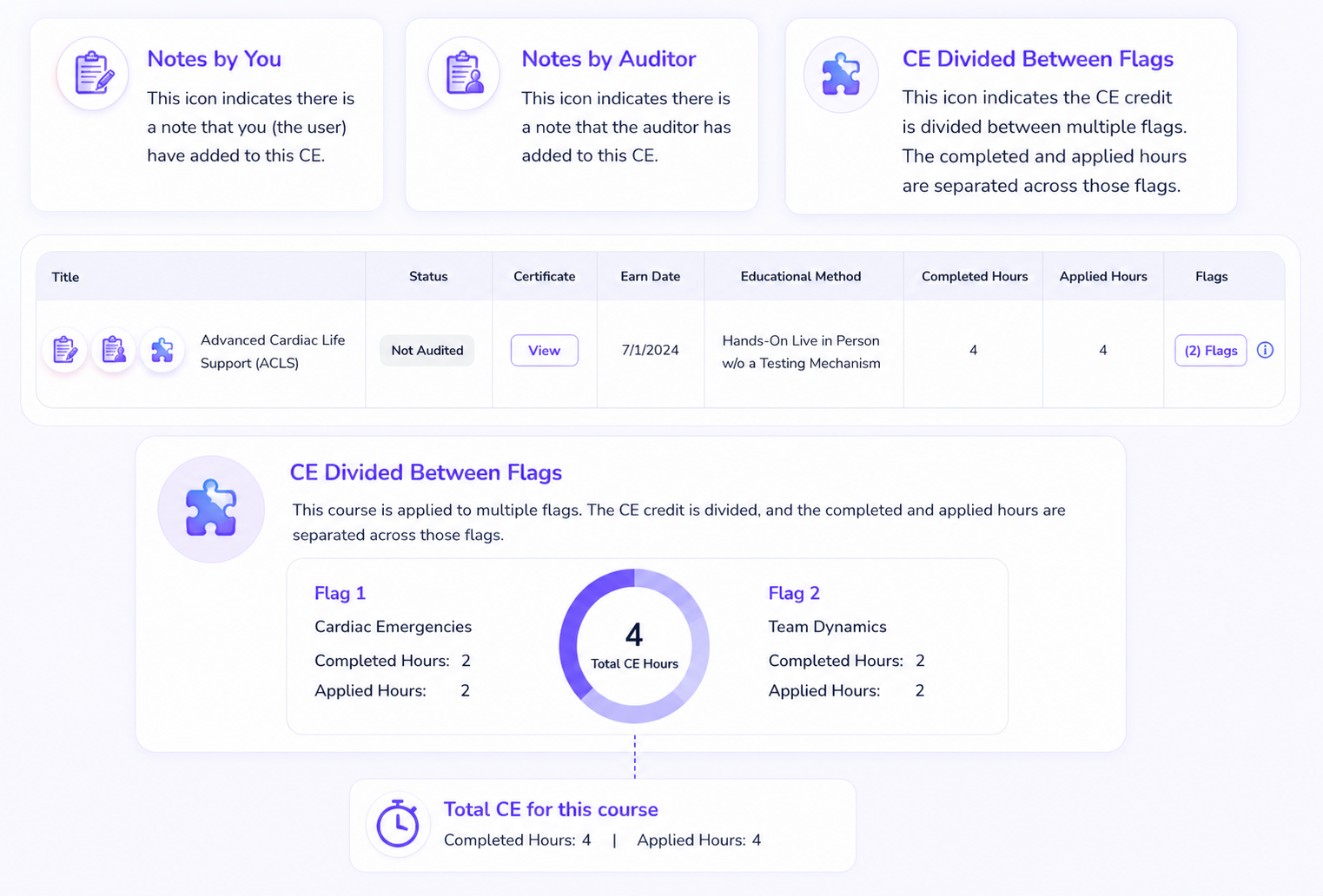
Understanding Icons

Quick visual icons within your CE Tracker provide additional insight into your records—helping you understand activity details at a glance.

  • Notes Icon: Indicates that a note has been added to the CE record by either you or an auditor. This can include important context, clarifications, or audit-related comments.
  • Puzzle Piece Icon: Indicates that a course has been split into multiple records to reflect different topics covered—ensuring your CE hours are accurately allocated across requirements.
ChatGPT Image Apr 27, 2026, 10_11_08 AM

Understanding Flags

Flags provide additional insight into your CE records—helping you understand exactly how your hours are being applied and why they may not fully count toward your requirements.

They highlight important details such as unmet requirements, provider or course limitations, category mismatches, or maximums that have been reached. Flags may also indicate when hours are applied to a different renewal cycle, partially allocated, or not eligible based on specific rules.

Rather than errors, flags are designed to give you clarity—so you can quickly see what’s happening with your CE and take action if needed.

ChatGPT Image Apr 27, 2026, 10_15_47 AM

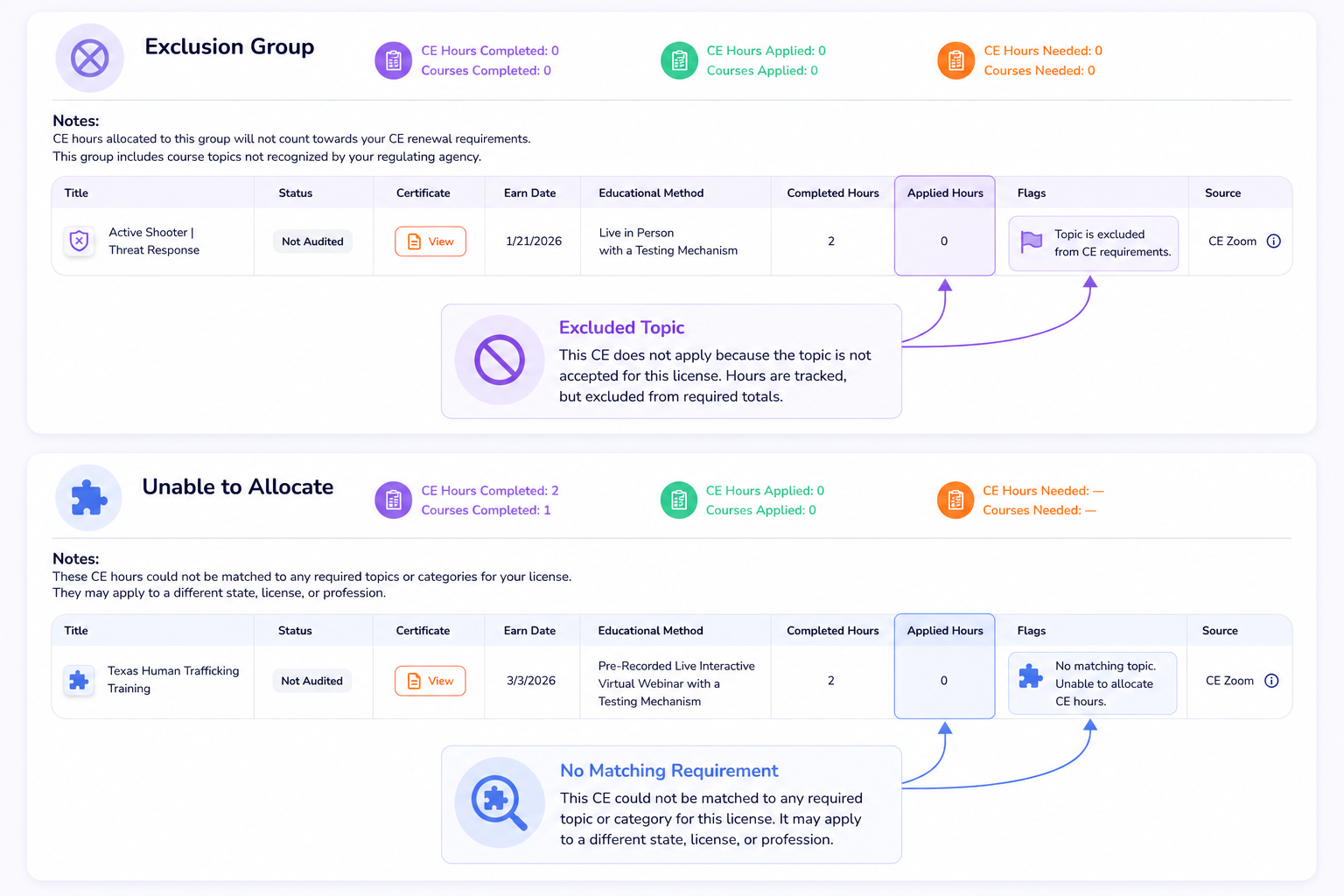
Exclusion Group

The Exclusion Group contains CE topics that your regulatory board does not recognize toward your required CE hours.

These courses may still be valuable, relevant, and even required for other purposes—but they are excluded from counting toward your core renewal requirements based on regulatory rules.

This section ensures transparency by clearly separating excluded CE from hours that fulfill your requirements—so you always know exactly what counts and what doesn’t.

ChatGPT Image Apr 27, 2026, 10_15_47 AM

Unable to Allocate

This group appears when a CE activity cannot be matched to a recognized topic for your selected license.

This typically happens when a course is specific to another state’s requirements or covers a topic that is not recognized for this license or profession. In these cases, the CE cannot be allocated toward your required groups.

The Unable to Allocate group helps you clearly identify which CE does not apply—so you can understand why it isn’t being counted and make informed decisions moving forward.

ChatGPT Image Apr 27, 2026, 10_19_20 AM

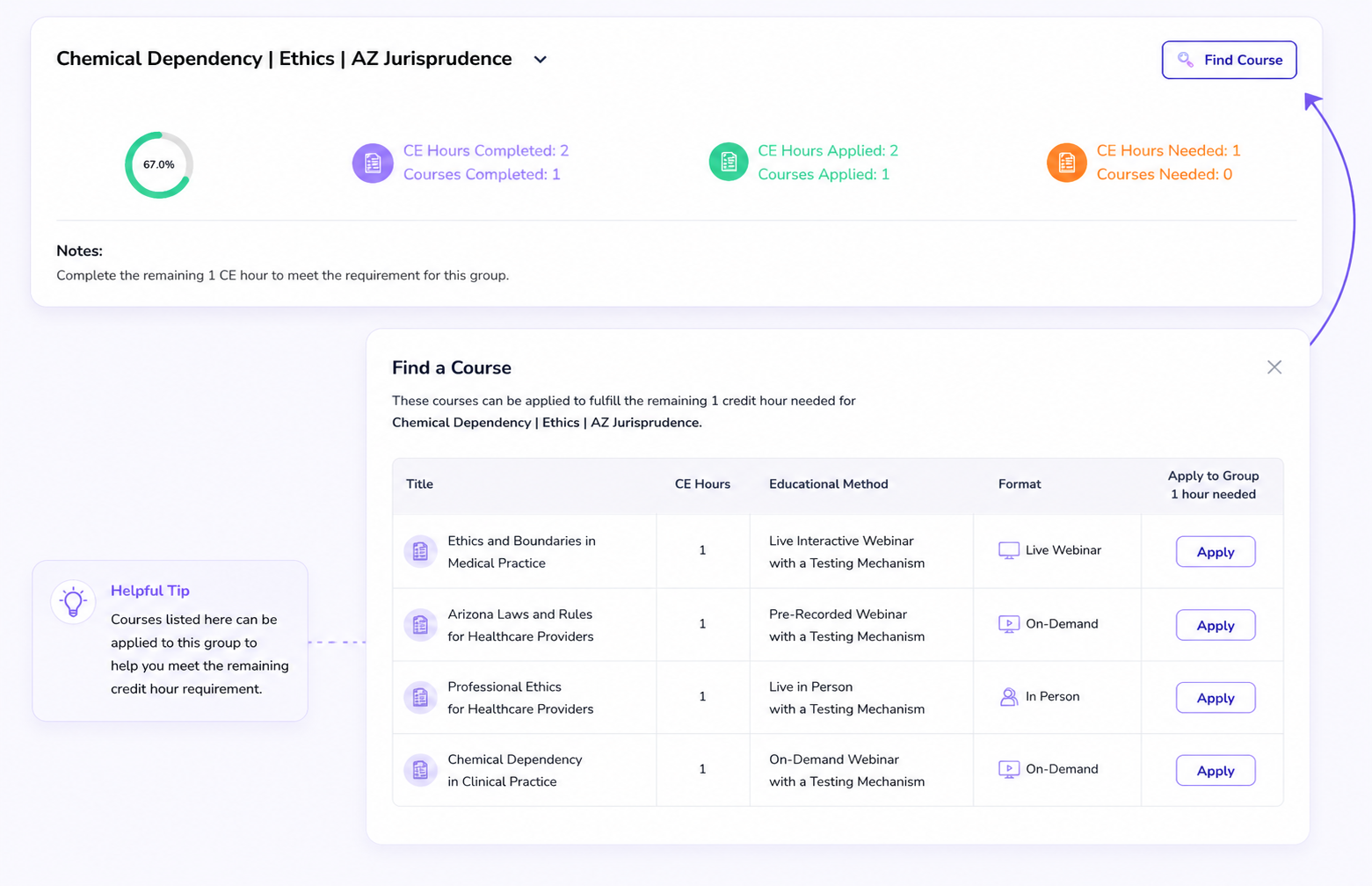
Find a Course Button

The Find a Course button is tailored to each group—helping you quickly locate courses that fulfill specific topic requirements.

When selected, it filters results based on that group’s criteria, including required topics, educational methods, and approved providers—so you’re only seeing courses that count toward what you still need.

This makes it easy to take action directly from your tracker—connecting your requirements to the right courses without the guesswork.


Understanding Your CE Tracker

How do I select my license and renewal period?

At the top of your tracker, use the dropdown menus to select your license or CE tracker and choose your renewal or audit period. Be sure you are viewing the correct renewal period to see the most up-to-date status for your current cycle.

What does the Overview section show on my tracker?

The Overview section displays three key metrics: Completed shows total CE credit hours earned, Applied shows hours that count toward your requirement, and Needed shows hours still required. Some credits may not be applied if they fall under excluded sections or exceed maximum limits.

Can I update my tracker if hours appear incorrect?

Yes, the Recalculate button re-runs all tracker data to detect and include new, migrated, or previously unrecognized records. Use this feature if some records aren't being allocated or your total hours seem inaccurate to ensure your tracker displays the most current information.

Can I track the status of individual CE requirements?

Absolutely. Each transcript section includes detailed criteria, displays CE courses completed and applied, and shows total credit hours toward fulfilling requirements. You can expand sections to view course topics, educational methods, provider requirements, and individual CE records with flags and status indicators.

What makes CE Zoom's tracker different from manual tracking methods?

Our tracker provides precision-based allocation instead of broad filters, real-time updates when state-specific requirements change, audit-ready records with transparent exports, and automatic detection of time-bound requirements with expiration tracking. This ensures complete compliance visibility and reduces clerical errors across all your licenses.