License Allocation
Just like course-related CE, choose the license(s) you want to allocate this activity to.
If the activity or documentation is specific to one state, it’s best to apply it only to that license.
How to Article

Track CE from activities like volunteering, teaching, meetings, and more by manually adding them to your account.
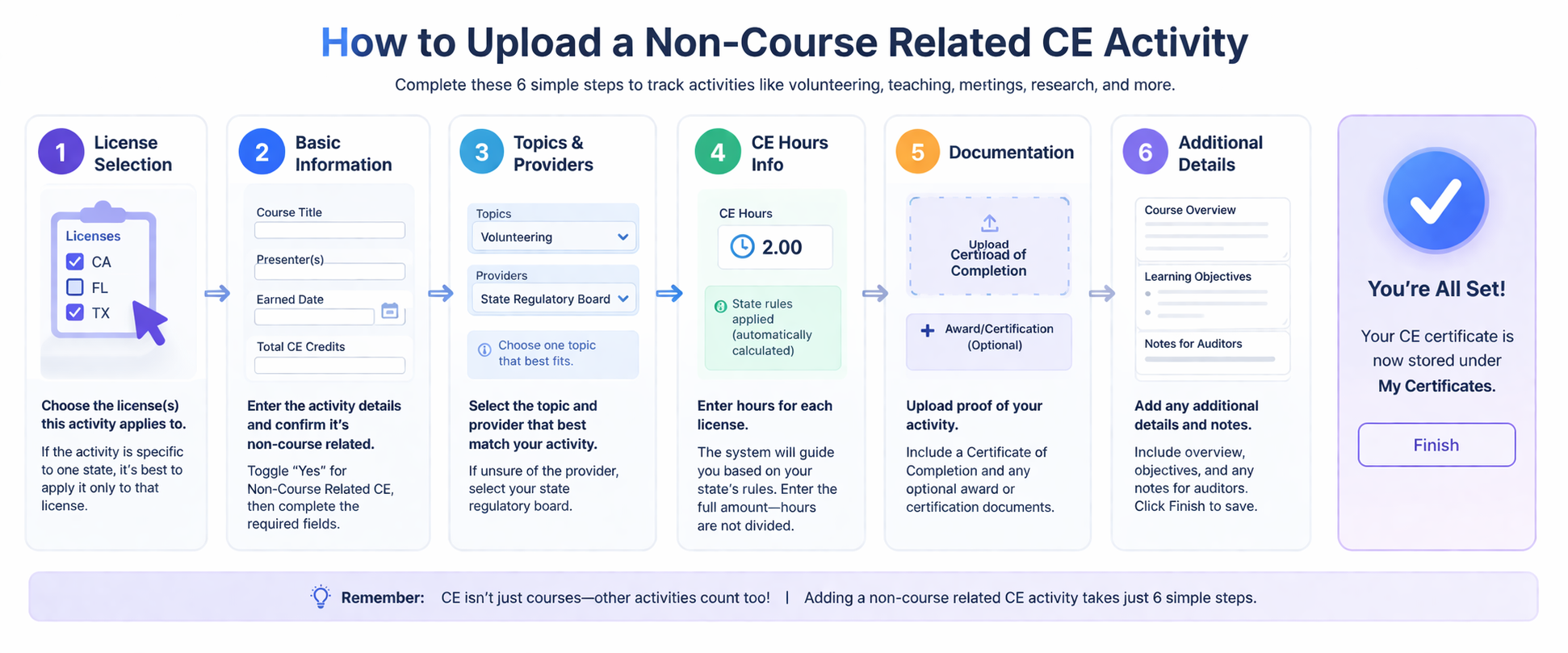
CE Outside of CoursesAdding a non-course related CE activity takes just 6 simple steps.
Just like course-related CE, choose the license(s) you want to allocate this activity to.
If the activity or documentation is specific to one state, it’s best to apply it only to that license.
How to Article
Enter the activity details and identify it as a non-course CE.
Be sure to toggle “Yes” for Non-Course Related CE so the system correctly categorizes activities like volunteering, teaching, or research. Then complete the remaining details, including title, date earned, credits, and educational type/method to ensure accurate tracking.
How to Article
Choose the one topic that best represents your non-course CE, then select the appropriate provider. If you’re unsure of the provider, selecting your state regulatory board is recommended. This ensures your CE is properly categorized and tracked for each license.
How to Article
Enter your CE hours based on your license requirements.
The system will guide you through each license, automatically applying any state-specific calculations when needed, or prompting you to enter earned hours.
How to Article
Upload documentation to support your CE activity.
This typically includes a certificate of completion showing key details like your name, activity title, credits earned, and date.
How to Article
Add final details to your CE record.
Include any helpful notes or descriptions to support your activity. When complete, click Finish to save your certificate.
How to Article